


Geographic Information System (GIS)
Welcome to the Lake County GIS Department
It is estimated that more than eighty percent of governmental functions are associated with managing information about specific locations or geographic areas. A Geographic Information System (GIS) is a computer system for the input, editing, storage, maintenance, management, retrieval, analysis, and output of geographically referenced information. GIS supports applications such as emergency dispatch, land planning, emergency management and Homeland Security, property appraisal, civil engineering, natural resource monitoring, transportation planning, monitoring crime and accidents, public health and environmental analysis, economic development, census analysis, and many more.
About Us
The Lake County GIS Department was formed in 1999 to create, operate, and maintain a system which will digitally map the county. Currently the Lake County GIS Department Consists of three fulltime employees. Overseen by a GIS Board consisting of Lake Counties Auditor, Engineer, and a Commissioner. the Lake County GIS Department strives to be a countywide, service driven resource of geographic information for Lake County. We provide spatial data and solutions, which enables our citizens and local government partners to accomplish their goals.
Lake County GIS Hub
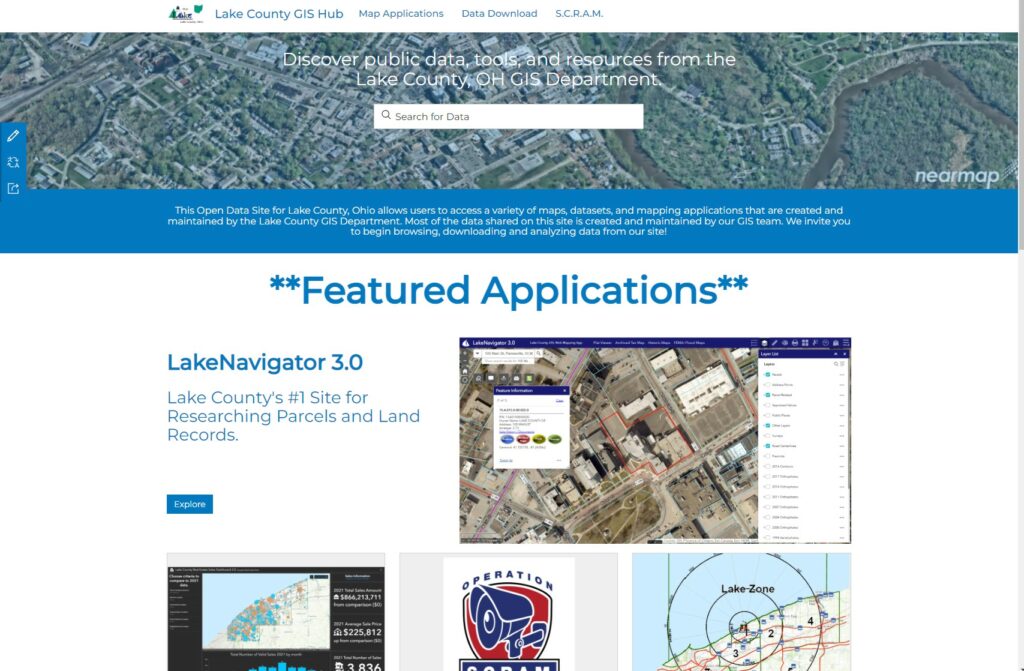
A GIS Hub is a platform for connecting all things GIS. Through The Lake County GIS Hub, users can gain access to the Counties variety of map applications, spatial data, and GIS programs.
Explore The Lake County GIS Hub
Lake Navigator 3.0
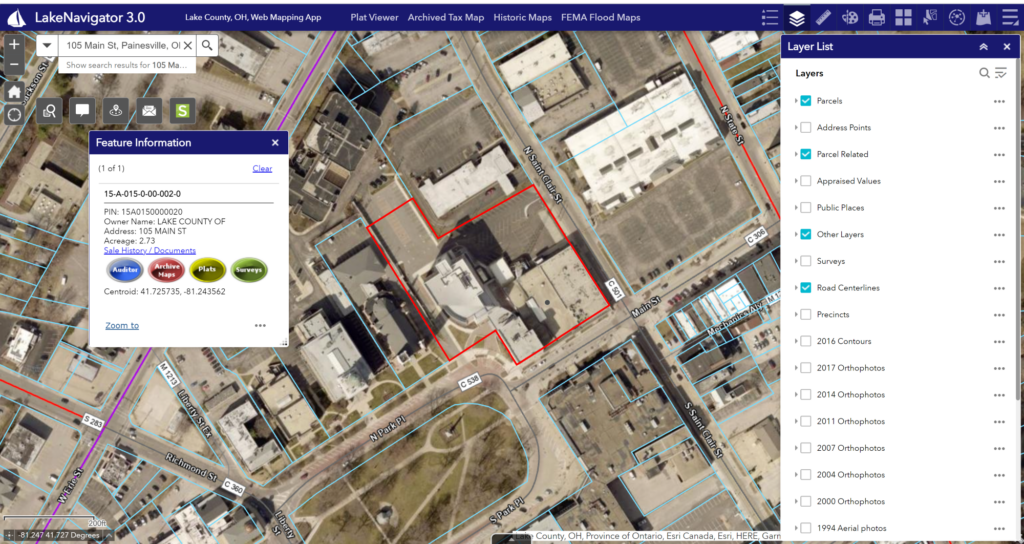
Lake Counties Interactive Parcel Viewer. This web application features advanced tools, and a wide variety of spatial data layers that allow users to research parcels, view land records, observe historical aerial imagery, and much more!
Explore Lake Navigator 3.0
GIS Open Data Download
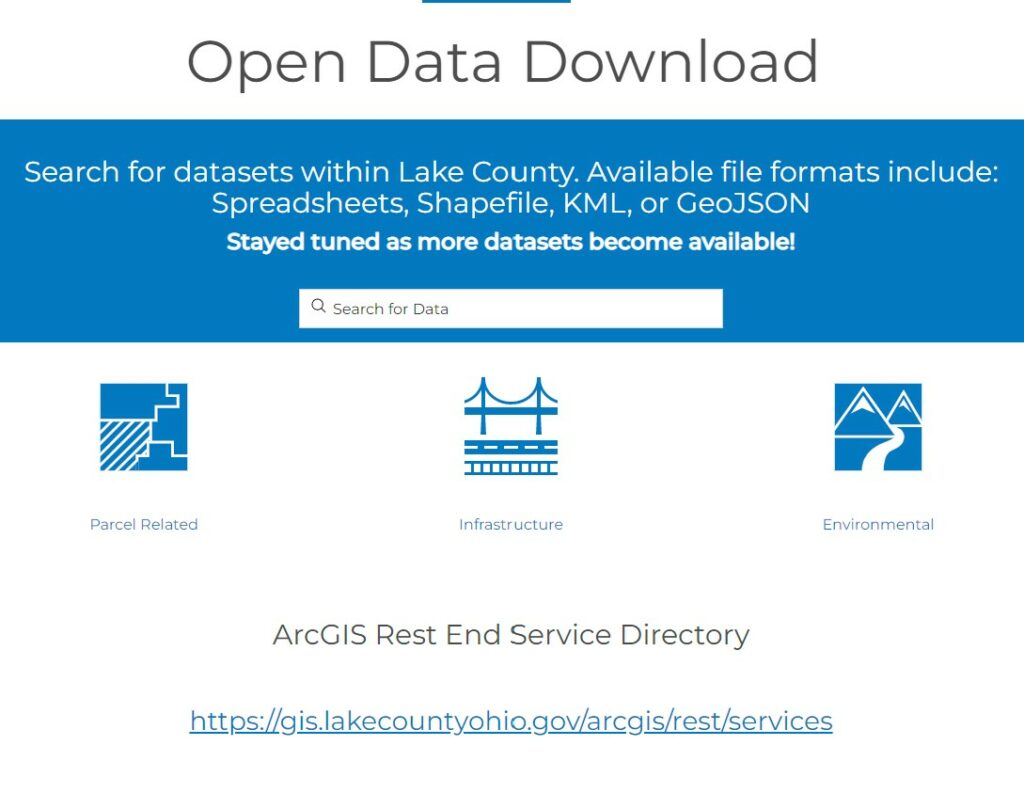
As part of our GIS Hub, we now host a Open Data Download page. All the layers available before on our site have been moved to this new page. Users are able to view and download our data in many formats including spreadsheets, shapefiles, Kml, GeoJSON and more.
Explore our Open Data Download
More datasets will become available in the future. For data requests please contact us.
Our old shapefile data download page is still available, you can find it here
Latest News
Upcoming Events
Geographic Information System (GIS) Resources
| Name | Job Title | Phone | |
|---|---|---|---|
| Caroline Petersen | GIS Director | 440-350-5970 | [email protected] |
| Dave Phares | Senior GIS Applications Specialist | 440-350-5982 | [email protected] |
| Ryan Barshick | GIS Technician | 440-350-5968 | [email protected] |
- What is GIS?
GIS stands for Geographic Information Systems. GIS is a system of hardware, software and information that integrates, stores, edits, analyzes and shares geographic data. More information about GIS can be found here.
- How accurate are your maps?
The various layers have differing accuracies. The property ownership parcel layer IS NOT SURVEY ACCURATE. This means that you will need to hire a surveyor to define your property’s boundaries. Please email or call us for specifics regarding accuracies.
- Where is your office located?
We are located in downtown Painesville, OH in the Lake County Administration Building at 105 Main Street. The GIS/Tax Map Office is in the lower level. We are open weekdays from 8:00am to 4:30pm. Please allow us to help you by calling 440 350-5970.
- Where can I get data?
We offer GIS data in a few different formats: Downloading GIS data, DVDs, paper maps, and online viewing. Downloading GIS data from our GIS Data Download site is quick and easy, just click here.
DVDs are available at no cost (we encourage the use of our FTP site). Data formats include: ShapeFiles, DWG and MrSID and JPEG orthophotography.
Paper maps: Printed maps can be obtained in a number of different sizes with varying costs. However, availability of custom maps is dependent upon staff workload. Prices range from $.25 for 8.5″ x 11″ to $23.00 for a 48″ x 66″ solid fill map. Cash or check only made out to John S. Crocker, Treasurer.
Online viewing: If you would prefer to print your own copies from the comfort of your home or business, visit our LakeNavigator site where you can search for specific properties or simply explore the county. We have over thirty layers available 24/7 to anybody with an internet connection.
- What coordinate system or projection is the GIS data in?
Ohio State plane coordinate system, North Zone, North American Datum 1983 (NAD83), US Survey Feet.
| Location Name | Address | City | Zipcode | Website | Phone |
|---|---|---|---|---|---|
| Lake County GIS Department | 105 Main St. | Painesville, OH | 44077 | 440-350-5970 |
| Title | Description | URL |
|---|---|---|
| Lake County GIS Hub | https://arcg.is/1HCP49 | |
| LakeNavigator 3.0 | https://gis.lakecountyohio.gov/lakenavigator3/ | |
| Open Data Download | https://gis-lakeohgis.opendata.arcgis.com/pages/data-download |